2.7 Tool & MCP Server Costs — The Hidden Token Tax
Before You Optimize: Measure What's Actually Loaded
Most context waste hides in things you never examine. Before tuning MCP servers or instruction files, check what's actually in your context window.
Copilot CLI: run /context mid-session to get a real breakdown:
Context Usage  claude-opus-4.6 · 104k/200k tokens (52%)
System/Tools:  62.5k (31%)   ← always-loaded: MCPs + instructions + system prompt
Messages:      41.8k (21%)   ← conversation history
Free Space:    55.3k (28%)
Buffer:        40.4k (20%)
VS Code Copilot: no equivalent command, but you can estimate your System/Tools baseline by counting active MCP servers × tools × ~200 tokens average (see §2.7.2). Also audit extensions that add skills, agents, MCP servers, or tool surfaces. If an extension injects tools you do not need for coding, disable it for that workspace or move coding work into a VS Code profile with only the essentials enabled.
The critical distinction — always-loaded vs. on-demand:
| Component | Loads | In context window? |
|---|---|---|
| MCP tool definitions | Every message | ✅ Yes |
Agent instructions / copilot-instructions.md |
Every message | ✅ Yes |
| System prompt | Every message | ✅ Yes (not controllable) |
Copilot CLI skills (.copilot/skills/) |
On request only | ❌ On disk only |
| Conversation history | Accumulates per turn | ✅ Yes |
Skills stored in .copilot/skills/ — even hundreds of kilobytes on disk — contribute zero to the System/Tools baseline. Optimizing skills improves individual agent spawn speed, not context headroom. MCP plugins and instruction files are the levers that move the System/Tools number.
Set this baseline before you start — don't change it mid-session. Because
System/Toolssits at the front of every request, it's also the cacheable prefix. Toggling MCP servers/tools or switching the custom agent mid-conversation rewrites that prefix, forfeits the cached savings, and leaves prior context as pollution under the new tool set. Choose your MCP/tool and agent set up front; if you genuinely need a different one, start a fresh session. See Caching §2.3.5.Dina Berry (Microsoft/GitHub content contributor) measured a real Copilot CLI production setup and found a single Azure plugin loading ~27K tokens per message — invisible until she ran
/context. Full writeup →
2.7.1 Every Tool Costs Tokens
When you enable an MCP server or tool in VS Code, its entire definition — function name, description, JSON schema for parameters — gets loaded into the agent's context. Every step. Every time.
This isn't free. Each tool definition costs approximately:
| Component | ~Tokens |
|---|---|
| Tool name + description | 20-50 |
| Parameter schema (simple) | 30-80 |
| Parameter schema (complex) | 100-300 |
| Total per tool | 100-500 |
2.7.2 The Multiplication Problem
Here's where it gets expensive:
Tools loaded = servers × tools_per_server × tokens_per_tool

Example (heavy setup):
  10 MCP servers × 5 tools each × 200 tokens avg = 10,000 tokens

Agent mode runs 5-25 steps per task.
Tool definitions reload EVERY step.

10,000 tokens × 15 steps = 150,000 tokens just for tool definitions.
That's 150K tokens doing nothing but telling the agent what tools exist. Before any actual work happens.
2.7.3 Tool Call Costs
Beyond definitions, every tool call costs tokens:
| Phase | Cost |
|---|---|
| Function name + parameters (output tokens) | 20-200 per call |
| Result parsing (input tokens, next step) | 50-2,000+ per call |
| Agent reasoning about which tool to use | 50-200 per step |
A single read_file call might cost 50 tokens to invoke but return 2,000 tokens of file content. The agent then processes all of that on the next step.
2.7.4 Before and After: MCP Server Audit
Before — "I enabled everything" (15 MCP servers):
| Server | Tools | ~Tokens/step |
|---|---|---|
| GitHub | 40 | 4,000 |
| Filesystem | 8 | 800 |
| Docker | 12 | 1,200 |
| Database (Postgres) | 10 | 1,000 |
| Database (Redis) | 8 | 800 |
| Slack | 15 | 1,500 |
| Jira | 12 | 1,200 |
| AWS | 20 | 2,000 |
| GCP | 18 | 1,800 |
| Kubernetes | 15 | 1,500 |
| Monitoring (Datadog) | 10 | 1,000 |
| 8 | 800 | |
| Calendar | 6 | 600 |
| Search (Brave) | 3 | 300 |
| Context7 | 2 | 200 |
| Total | 187 | ~17,700 |
At 15 agent steps: 265,500 tokens just for tool schemas.
After — "Only what I need for coding" (3 MCP servers):
| Server | Tools | ~Tokens/step |
|---|---|---|
| GitHub | 40 | 4,000 |
| Context7 | 2 | 200 |
| Filesystem | 8 | 800 |
| Total | 50 | ~5,000 |
At 15 agent steps: 75,000 tokens for tool schemas.
Savings: 190,500 tokens per agent task. That's 72% less token overhead from tool definitions alone.
2.7.5 Configuring MCP Servers Per-Workspace
Don't enable every MCP server globally. Use workspace-level configuration:
Global config (settings.json User Settings) — only universally-needed servers:
Per-workspace config (.vscode/mcp.json) — project-specific servers only:
{
  "servers": {
    "postgres": {
      "command": "mcp-server-postgres",
      "args": ["postgresql://localhost/mydb"]
    }
  }
}
The rule: If you don't need it for the current task, disable it. You can always re-enable it later. Every idle MCP server costs tokens on every agent step.
VS Code extensions count too. MCP servers are the obvious source of tool schemas, but some extensions also add skills, chat participants, agent profiles, or tool surfaces that can appear in the AI context. For cost-sensitive coding sessions, keep a lean VS Code profile: core language tooling, GitHub Copilot, and only the MCP/tools needed for that repo. Disable everything else at the workspace or profile level.
2.7.6 Practical Guidance
- Audit your MCP servers — run through your enabled servers. Do you actually use all of them? Disable the rest
- Task-based enabling — working on DB migrations? Enable the Postgres MCP. Done? Disable it
- Prefer built-in tools — VS Code's built-in tools (file read/write, terminal, search) are already loaded by the agent. Adding an MCP filesystem server on top is redundant
- Watch tool count — if you have 100+ tools enabled, you're adding thousands of tokens per step on definitions alone
- Custom instructions help — add "Minimize tool calls. Read files only when necessary." to reduce call frequency
- Use skills instead of MCPs for occasional capabilities — MCP tool schemas load on every step whether used or not. Skills load only title and description upfront; the full content pulls on demand. If a capability is used in fewer than half your sessions, a skill is cheaper. See Practical Setup §4.2 for the full comparison
- Optional, Copilot CLI only: try CodeAct for long tool chains — external plugin
copilot-codeact-plugincollapses many small tool hops into one sandboxed execution. That does not shrink any one server's schema, but it can reduce how often the full tool catalog gets replayed on CLI-heavy tasks - Use a focused custom agent for repeat coding workflows — a custom agent can carry a narrow tool list and stable instructions, so the same coding workflow starts with the same active surface instead of whatever the default chat currently exposes. Where your Copilot surface supports model selection in agent/profile files, pin the intended model there too
- Compress tool output at the source with RTK or snip — RTK (Rust Token Killer) and
snipare CLI proxies that filter the results of shell commands before they reach the agent. Reductions are real but vary by command, project output volume, and hook reliability. See §2.7.7 and §2.7.8 - Use minimal-context skills before adding more tools —
minimal-context-toolspackages skills forrg,fd,jq,yq,ast-grep, and related CLIs. The pattern is cheap because it steers the agent toward precise one-shot commands before any large output exists. Pair it with RTK/snip when shell output is still noisy.
2.7.7 Compress Tool Output at the Source: RTK
MCP schema overhead is the cost before any work. Separately, every shell command the agent runs produces output that becomes input tokens on the next step. A failing cargo test or git diff on a large PR can return 10,000–25,000 tokens of raw text — passing test lines, unchanged diff context, build noise — that the agent reads in full.
Copilot already has harness-level savings: prompt caching, deferred tool schemas, WebSocket transport, context compaction, and large-output caps. Those features do not replace output filters. VS Code's terminal tool uses a hard head/tail-style output limit; Copilot CLI also warns the model to limit output and filter with head, tail, grep, or awk. That is useful safety net behavior, not semantic parsing. RTK and snip act earlier: they turn verbose command output into a smaller domain-specific summary before the harness has to truncate it.
RTK (Rust Token Killer) is a CLI proxy that sits between the shell and the agent. It runs the original command, captures the output, applies per-command filters (noise removal, keeping only failing tests, deduplicating log lines, grouping file listings), and returns the compressed result. The agent sees smaller output; its behavior is otherwise unchanged.
How it works, step by step:
1. Agent issues a Bash tool call (git status, cargo test, etc.)
2. RTK hook intercepts and rewrites to rtk git status / rtk cargo test
3. RTK runs the real command and captures full output
4. RTK applies command-specific filters
5. Agent receives filtered result — semantically equivalent, shorter
Estimated output reductions (RTK's own benchmarks on a medium TypeScript/Rust project — actual savings depend on your project's output volume):
| Command | Raw output | With RTK | Reduction |
|---|---|---|---|
ls / tree |
~2,000 tokens | ~400 | -80% |
git status |
~3,000 tokens | ~600 | -80% |
git diff |
~10,000 tokens | ~2,500 | -75% |
cargo test / npm test |
~25,000 tokens | ~2,500 | -90% |
grep / rg |
~16,000 tokens | ~3,200 | -80% |
git log -n 10 |
~2,500 tokens | ~500 | -80% |
These reductions are real in practice. Commands with verbose output (test failures, large diffs) see the biggest gains; commands with short output see smaller absolute numbers.
Install:
# macOS
brew install rtk

# Linux / macOS
curl -fsSL https://raw.githubusercontent.com/rtk-ai/rtk/refs/heads/master/install.sh | sh
Windows caveat: RTK is strongest today on Unix-like shell paths. On Windows, shell-hook behavior and path handling can be brittle, especially across PowerShell, Git Bash, WSL, and VS Code agent execution. Treat it as a pilot, not a default recommendation: test it on the exact repo and shell your team uses, and skip it if the setup causes command failures or noisy behavior.
Setting up for Copilot:
For Copilot, RTK installs a PreToolUse hook and awareness instructions. Project-scoped setup writes into .github/; newer RTK builds also document a global Copilot install under ~/.copilot/ / $COPILOT_HOME. Validate on your Copilot surface before rolling it out because hook contracts move faster than static docs.
cd your-repo
rtk init --copilot

# Optional global Copilot setup where supported by your RTK version:
rtk init -g --copilot
Once enabled, the hook is transparent: your terminal commands are unchanged; only the agent's Bash tool calls are intercepted. If your environment does not support the global Copilot hook path reliably, keep the per-repo setup and document it for each team workspace.
Other AI tools (global install available):
rtk init -g                   # Claude Code (global)
rtk init -g --gemini          # Gemini CLI (global)
rtk init -g --agent cursor    # Cursor (project-level)
rtk init --agent cline        # Cline / Roo Code (project-level)
Scope: The hook intercepts Bash tool calls issued by the agent. VS Code Copilot's built-in tools (Read, Grep, Glob) do not go through Bash and are not affected. Use shell-equivalent commands (cat, rg, find) when you specifically want RTK filtering.
Pairs with MCP reduction: Schema audit (§2.7.4–2.7.6) cuts the definition cost that reloads every step. RTK cuts what each tool call returns. Both address different parts of the token budget and work together.
2.7.8 RTK Alternative: snip
snip solves the same class of problem as RTK: shell commands still run normally, but the agent receives a filtered result instead of raw noisy output. The main difference is extensibility. RTK ships a compiled Rust command registry; snip uses declarative YAML filters that users and teams can add without touching Go code.
When snip is most attractive:
- you want custom filters for project-specific tools
- you want local savings stats via
snip gain - you prefer YAML filter contribution over compiled command rules
- you need Copilot CLI hook support and can validate the hook path in your environment
Install:
Copilot setup:
At the time of writing, snip's Copilot path writes a preToolUse hook for Copilot CLI. VS Code Copilot agent hooks are still a moving surface, so treat VS Code setup as a pilot unless your team has validated the exact version and workspace configuration.
Filter model:
Snip supports pipeline actions such as keeping or removing matching lines, head/tail truncation, ANSI stripping, JSON extraction, regex extraction, grouping, deduplication, aggregation, and templates. Project-local filters require trust approval, which is the right default for teams: output filters influence what the model sees, so they should be reviewed like tool configuration.
RTK vs. snip:
| Choice | Pick when |
|---|---|
| RTK | You want a single Rust binary, broad agent support, and compiled defaults |
| snip | You want YAML filters, local stats, and easier project/team customization |
Do not stack RTK and snip on the same command path by default. Pick one output-filter layer per agent surface, then measure. Stacking can double-truncate output and make debugging harder.
2.7.9 Adjacent Ecosystem: What Else Belongs in the Mental Model
Not every token tool is a direct RTK/snip alternative. Keep these categories separate:
| Tool | Category | Use it for | Caveat |
|---|---|---|---|
snip-ai/snip |
Claude Code-focused output filter | Read/Bash/Grep/Glob optimization with AST-aware code handling | Different project from edouard-claude/snip; no Copilot path verified |
| Redcon / ContextBudget | Context packing + command compression | Team workflows that want command compressors plus CI quality gates | License and product boundary should be reviewed before rollout |
| Headroom | Full-stack compression wrapper | Broader file, command, memory, and MCP compression experiments | Validate headroom wrap copilot before documenting as standard setup |
| Tokentop | Local token and cost visibility | Live session, model, token, cost, and burn-rate dashboard for Copilot CLI and other supported agents | Monitoring only; does not compress |
| Tokalator | VS Code token visibility | Budget dashboards, model/context-window awareness, instruction-file scans | Monitoring only; does not compress |
| token-optimizer | Context audit/status tooling | Auditing stale memory, configs, compaction loss, and model routing | PolyForm Noncommercial license |
| Caveman | Model-output compression | Shorter assistant responses and terse style packs | Does not reduce shell-command input; prompt overhead matters |
| ACON | Research framework | Academic grounding for long-horizon context compression | Not a drop-in developer tool |
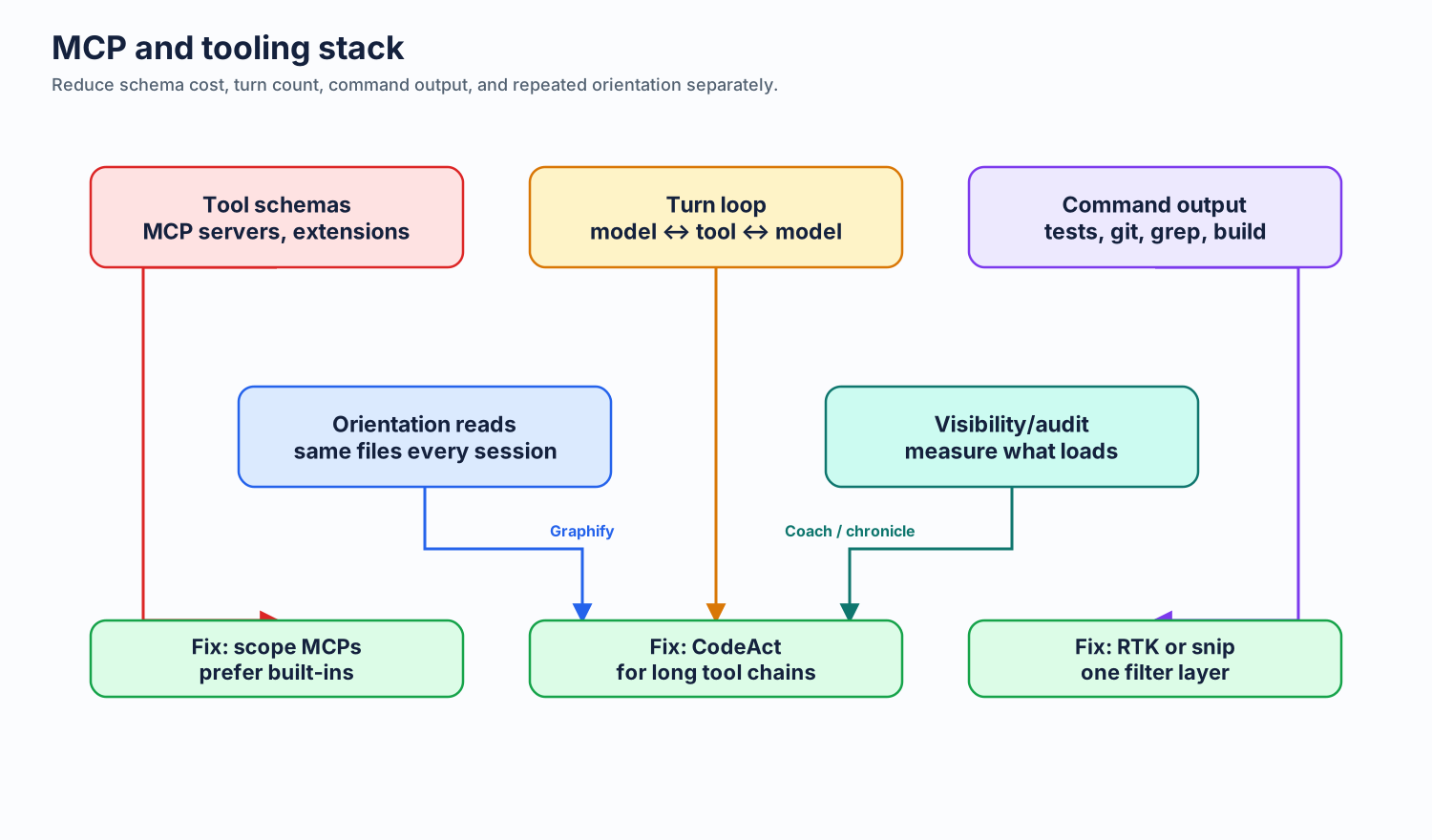
The practical stack is: keep Copilot's harness stable, reduce always-loaded MCP/schema overhead, steer the agent toward precise commands, then use one semantic output filter where command output is still large.
2.7.10 Case Study: Scoping a Large Plugin — Azure MCP
A single plugin can dominate your System/Tools budget. Dina Berry (Microsoft/GitHub content contributor) audited her Copilot CLI setup with /context and found the Azure MCP plugin loading ~27K tokens per message by default — more than all her other MCP servers combined.
The cause: the Azure MCP Server (v3.0.0-beta.6) exposes 259 tools across 56 namespaces. In its default namespace mode it already groups by service, but if you're only using a few Azure services, most of those schemas are noise in every message.
Option A — disable entirely (if you don't need Azure in this session):
Result: ~27K tokens freed from every message immediately.
Option B — namespace scoping (recommended):
The Azure MCP team built --namespace filtering for exactly this. Declare the services you actually use:
# In your MCP server config args:
--namespace appservice --namespace cosmos --namespace keyvault --namespace storage
This loads ~24 tools (4 namespaces) instead of all 56 namespaces. The functionality you need stays; the rest doesn't load.
Common developer stacks:
| Persona | Namespaces to keep |
|---|---|
| Web apps | appservice, cosmos, keyvault, storage, functions |
| Data/Analytics | cosmos, sql, kusto, eventhubs, storage |
| DevOps/Infra | compute, aks, azureterraform, deploy, monitor |
| AI/ML | foundryextensions, search, speech, applicationinsights |
Azure MCP server modes (controls how tools are exposed):
| Mode | Tools exposed | Context cost |
|---|---|---|
namespace (default) |
One tool per service namespace | Moderate |
consolidated |
Groups by user intent | Lower |
single |
One routing tool for everything | Lowest |
all |
Every operation as separate tool (259) | Very high |
VS Code: scope the Azure MCP visually — gear icon next to the chat panel → select/deselect at server, namespace, or individual tool level. No config files needed.
Measured results from Dina Berry's setup:
Before (default config):   System/Tools 62.5k (31%) — Free Space 28%
After (Azure scoped):      System/Tools 35.2k (18%) — Free Space 45%
After (+ slim instructions): System/Tools 25.5k (13%) — Free Space 67%
The general lesson: when System/Tools is high, audit plugins before anything else. One large plugin routinely costs more than the rest of the setup combined. Full writeup: dfberry.github.io.
Next: Comparisons & Data →